PRODUCT INFORMATION
DeCIM has been developed using more than 20 years of Microsoft experience at the core level with the express aim of
providing a simple to use but robust platform for the development of a reference build which can then be utilised to
create a deployable image. The entire platform is based on Microsoft approved technologies and methodologies
ensuring that the image is fully compliant.
Technical Framework
Using the most current suite of development tools that ensure quality of code and interoperation, DeCIM offers a
solution that:
• Allows for rapid creation of a reference operating system build
• Enables changes to hardware components to be updated without impacting the remainder of the reference
build by the management of drivers
• Allows multiple SOE images to be created from the one source to suit different platforms
• Utilises Sysprep and WinPE to ensure that AD machine GUID’s are unique
Deployment Creation
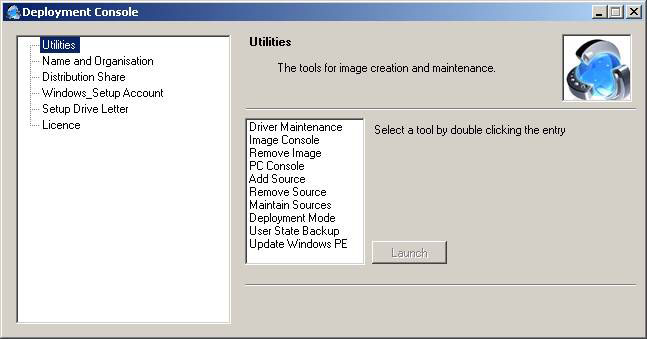
Using the image console (Figure 2), all of the user definable features and options within Windows are configured using
this tool. In addition other silent installs (vbs, executable, mst etc.) are added to the SOE/CDE and any custom files
(wallpapers, templates etc.) are also added to the deployment at this stage.
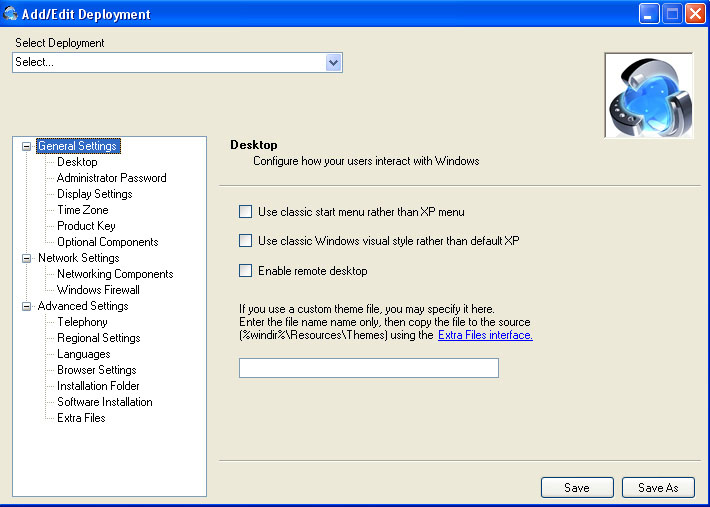
Figure 2 - Image Console
Reference Build Options
Once the Operating System build has been completed there are a number of methods that can be used to load
additional software prior to creation of the reference image.
• Pre packaged installers can be added via a simple interface in the image console (as above)
• Manual installation and configuration of software can be performed prior to the reference image being created
• SCS can provide expert assistance to package silent installs for use with the reference build if required
At the completion of this process the option is provided to capture the image and the reference machine is then rebuilt
using that image in order to maintain a verified image.
Normal Build
The process for a normal build requires a network boot of the machine at which point it will be built automatically using
the default build image. Builds should be completed in approximately ten minutes dependant on network speed. For
further information refer to PC Console below.
Driver Management
A driver management tool (Figure 3) is provided that allows for additional drivers to be placed in the source files without
the need to create a new image each time a driver is changed. This does not replace the previous driver to maintain
backward compatability with older machines that require reimaging but simply makes the new one available for those
machines that require it. Please note that in Windows v5.x it is necessary to run the reference build again to capture the
changes.
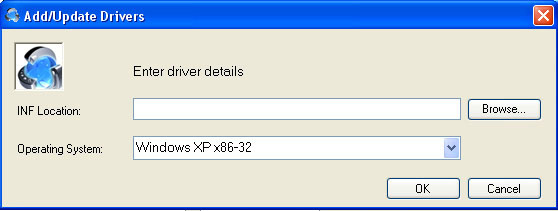
Figure 3 – Driver Management
Source Management
The source management tool (Figure 4) allows the source files upon which the image is based to be updated
independent of the image and thus patches, service packs, bug fixes and other changes can be updated as required so
that the image remains current.
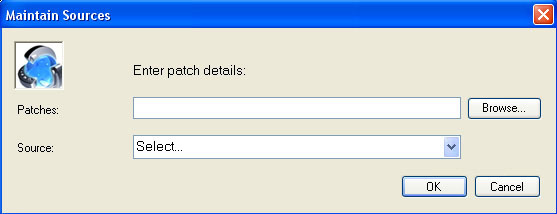
Figure 4 – Source Management
PC Console
The PC Console (Figure 5) maintains a record of the machines within the environment that have been imaged along with
some basic data about their configuration, the actual image they are installed with and an option to either permit or
deny imaging. It is not intended to be an asset manager but merely to provide base information about the version of the
build that has been applied to the machine. Machines to be imaged are added here prior to their network boot as the
default image for them is configured here or they will receive the default build. There are options as to whether
machines need to be created here prior to build, whether they just receive a default build or whether a hybrid mode is
used.
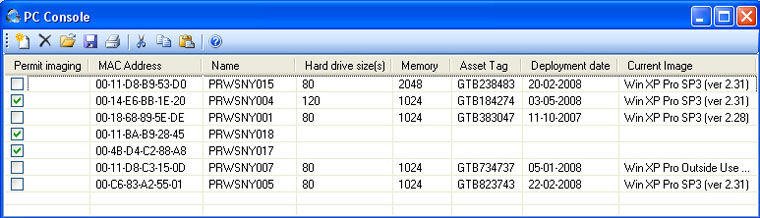
Figure 5 –PC Console
User State Backup
The User State backup tool is used to save settings and data from an existing PC for which a new machine is being
supplied as a replacement. This is an automated process whereby the machine to be backed up is placed in a special
user group and then a backup of the user state is collected the next time the user logs off the machine. In addition to
collecting the standard components, a pre defined list of document extensions is also saved and this list can be added to
using the console (Figure 6) shown below.
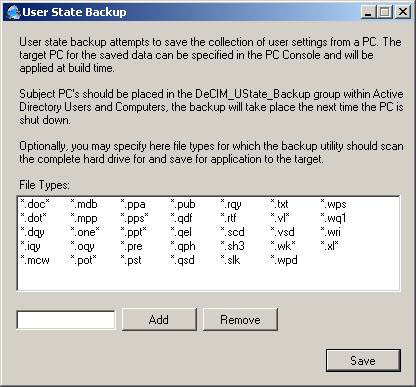
Figure 6 –User State Backup Console• return to top |
|
|
|